
How to Copy & Sync Large Folders Safely on Windows Without Corruption
Protect large transfers to external SSDs and NAS drives on Windows 11 with resumable queues, BLAKE3/SHA-256 verification, and previewed folder sync.
Why big drag-and-drop transfers go wrong on Windows
Moving a few spreadsheets works fine with drag-and-drop. Moving 200 GB of video shoots, backups, or code archives to a USB drive or network share is a different story:
- Start two copies to the same disk and Windows runs them simultaneously, thrashing the drive and cutting throughput in half.
- If a USB cable bumps loose or Wi-Fi drops at 85%, you are left wondering which files finished cleanly and which are half-written.
- Standard Windows copies never verify checksums after writing, so silent corruption on ageing drives goes unnoticed until you try to open the archive months later.
Queued, resumable copies with BLAKE3 and SHA-256 verification
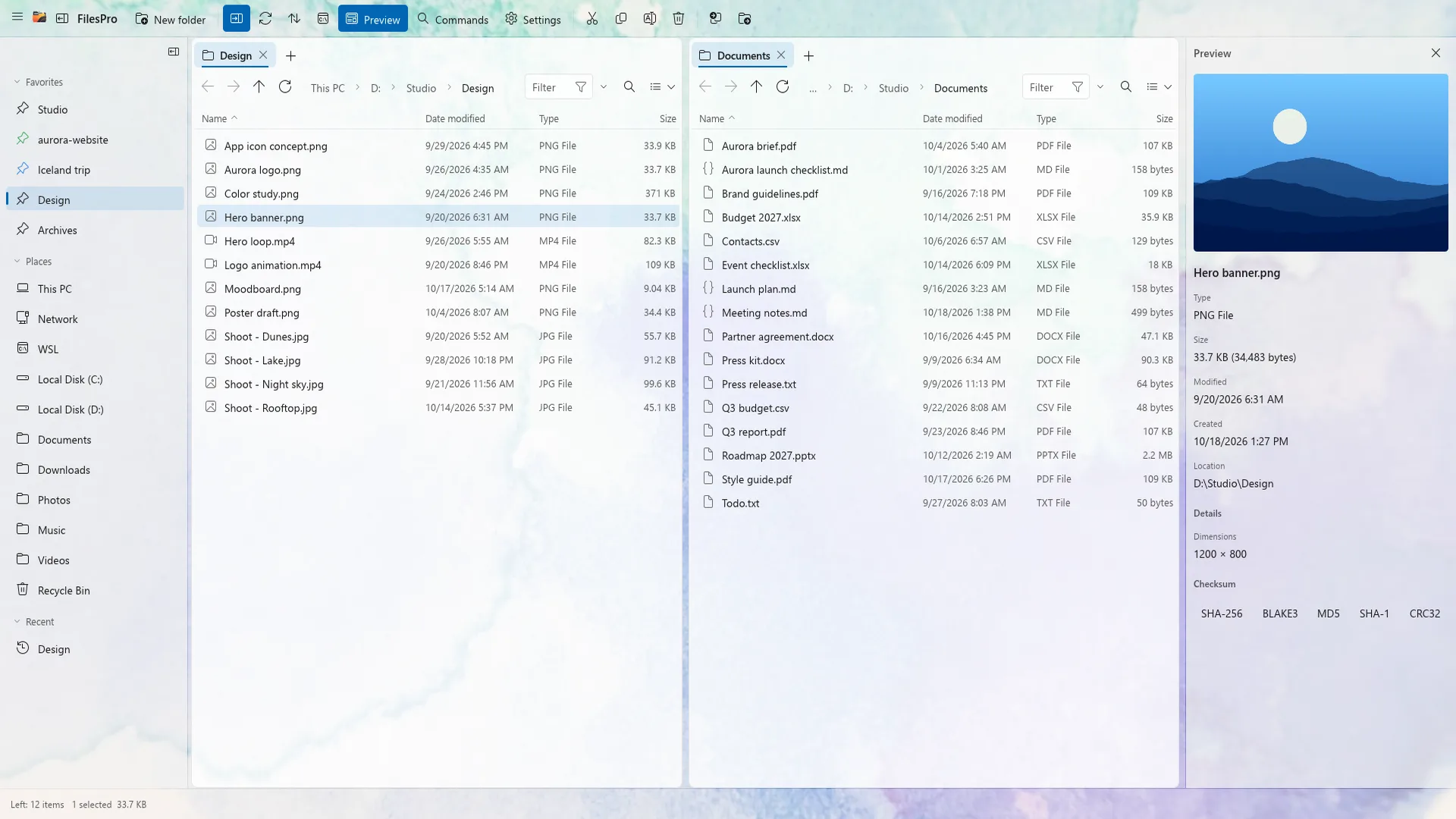
A proper operation queue turns chaotic file transfers into predictable jobs. In FilesPro, you can queue multiple copies, pause a heavy transfer while you jump on a call, reorder urgent jobs to the front, and resume cleanly with crash recovery if a drive disconnects.
For critical archives and client handovers, turn on verified copies. FilesPro checks the destination file against the source using fast BLAKE3 or standard SHA-256 hashes—confirming byte-for-byte integrity before you ever delete the original.
Choosing the right folder sync mode (always previewed first)
When keeping a laptop folder aligned with an external backup SSD or network share, copying the entire directory every time wastes hours. Folder Sync compares both sides and only transfers what changed:
| Sync mode | Best used for | Behaviour |
|---|---|---|
| Mirror | Exact one-way backups to an external drive | Makes destination match source, including removals |
| Two-way | Working on the same project across two locations | Propagates newer edits in both directions |
| Update-only | Additive archives where nothing should be deleted | Copies new and newer files without deleting extras |
Frequently asked questions
Should I choose BLAKE3 or SHA-256 for verified copies?
BLAKE3 is significantly faster on modern CPUs and is ideal for multi-gigabyte media backups. Choose SHA-256 when you need compatibility with external checksum manifests or compliance requirements.
What happens if my PC restarts mid-workflow—can I still undo?
Yes. FilesPro stores its operation journal on disk, so Ctrl+Z undoes completed file operations even after restarting FilesPro or Windows.
Can I compare two folders without running a full sync?
Yes. Compare Panes highlights files that are new or different between the left and right panes so you can copy selectively.
Try FilesPro on Windows
A fast, keyboard-first file manager for Windows, built in Rust.