
Best Windows 11 File Explorer Alternatives in 2026 (Dual-Pane & Fast)
Why Windows 11 File Explorer lags on large folders and what to look for in a fast, dual-pane file manager with instant search and verified copies.
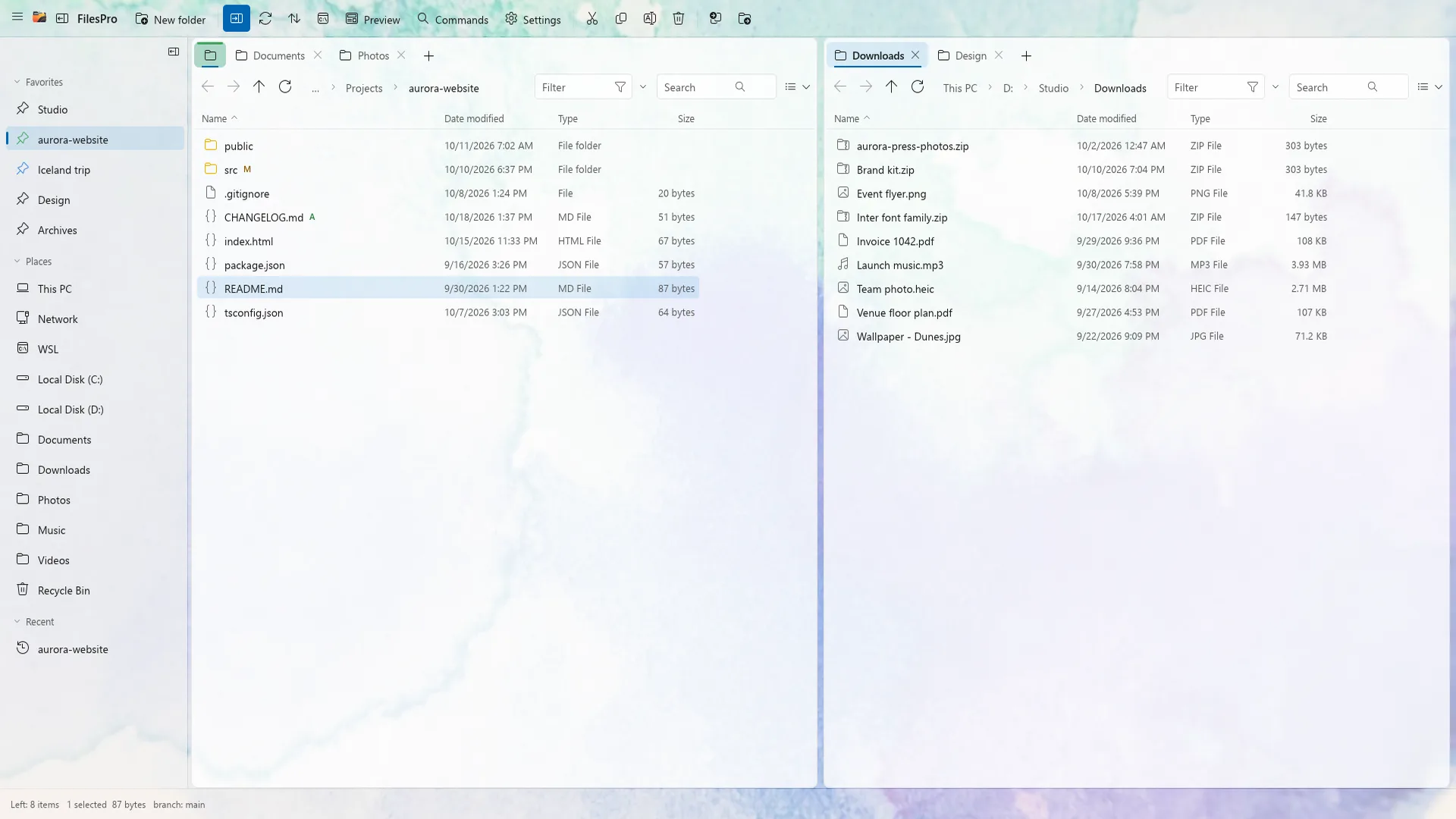
Why default Windows File Explorer slows down real work
Windows 11 added tabs to File Explorer, which helped for basic browsing, but anyone who moves thousands of files, manages project trees, or organises media drives still runs into the same bottlenecks every day.
- No true dual-pane mode: copying between folders still means juggling two separate windows side by side.
- Sluggish search on large drives: typing into the search box often hangs while Windows scans folders live.
- Fragile copy dialogs: there is no queue you can pause, reorder, resume after an interruption, or verify with checksums.
- Undo disappears on restart: close Explorer or reboot Windows and your last move or rename cannot be rolled back.
- Limited built-in previews: inspecting code, Markdown, CSV, HEIC, or searchable PDFs forces you to launch external apps.
What actually matters in a modern Windows file manager
When comparing Windows File Explorer alternatives, focus on daily speed and data safety rather than cosmetic skins. Five capabilities separate a genuine productivity upgrade from a reskinned wrapper:
| Capability | Windows File Explorer | FilesPro |
|---|---|---|
| Dual panes with independent tabs | Single pane only | Two panes with pinned, coloured & movable tabs |
| Instant local filename search | Slow live crawl / Windows Search | Instant search-as-you-type from local index |
| Operation queue & crash recovery | Basic parallel dialogs | Pause, resume, reorder & BLAKE3/SHA-256 checks |
| Undo across restarts | Lost when window closes | Persistent journal survives restarts |
| Batch rename & duplicates | Basic F2 numbering only | Tokens, EXIF/ID3, regex preview & duplicate finder |
| Terminals, WSL & SFTP | External window only | Docked terminal tiles, SFTP & WSL in sidebar |
| Account, ads & telemetry | Microsoft account nudges | Zero account, zero ads, zero telemetry |
How a dual-pane workflow cuts file moves in half
In a dual-pane file manager, your source folder sits on the left and your destination stays open on the right. Every copy, move, or folder comparison knows its target automatically—you select files, press one key, and move on.
With independent tabs on each side, you can pin active project directories, colour-code client folders, and drag or send a tab straight to the opposite pane. Paired with Compare Panes, you can highlight only new or modified files before copying a single byte.
Native performance without telemetry or cloud lock-in
A file manager touches everything on your PC: financial PDFs, client source code, family photos, and system configs. It should never require an account, phone home with analytics, or eat hundreds of megabytes of RAM sitting idle.
FilesPro is built as a native Windows 10 and 11 application. Your local filename index, colour tags, themes, and undo journal stay strictly on your machine—no accounts, no ads, and zero telemetry.
Frequently asked questions
Is FilesPro safe to use alongside Windows File Explorer?
Yes. FilesPro does not replace or patch Windows system files. It runs as a standalone Microsoft Store app for Windows 10 (build 19041+) and Windows 11, so File Explorer stays untouched whenever Windows needs it.
Does a dual-pane file manager work well on a laptop screen?
Yes. You can resize panes freely, toggle between single and dual pane in one shortcut, and use tabs on either side to keep workspace clutter low even on a 13-inch display.
Can FilesPro open archives and inspect files without extracting them?
Yes. Zip, 7z, and tar archives browse just like regular folders, and you can create zip or 7z archives with optional AES-256 encryption.

Try FilesPro on Windows
A fast, keyboard-first file manager for Windows, built in Rust.