
How to Batch Rename Files on Windows 11 (Tokens, EXIF & Regex)
Step-by-step guide to bulk renaming photos, music, and project files on Windows 11 using tokens, EXIF dates, ID3 tags, and regex with live preview.
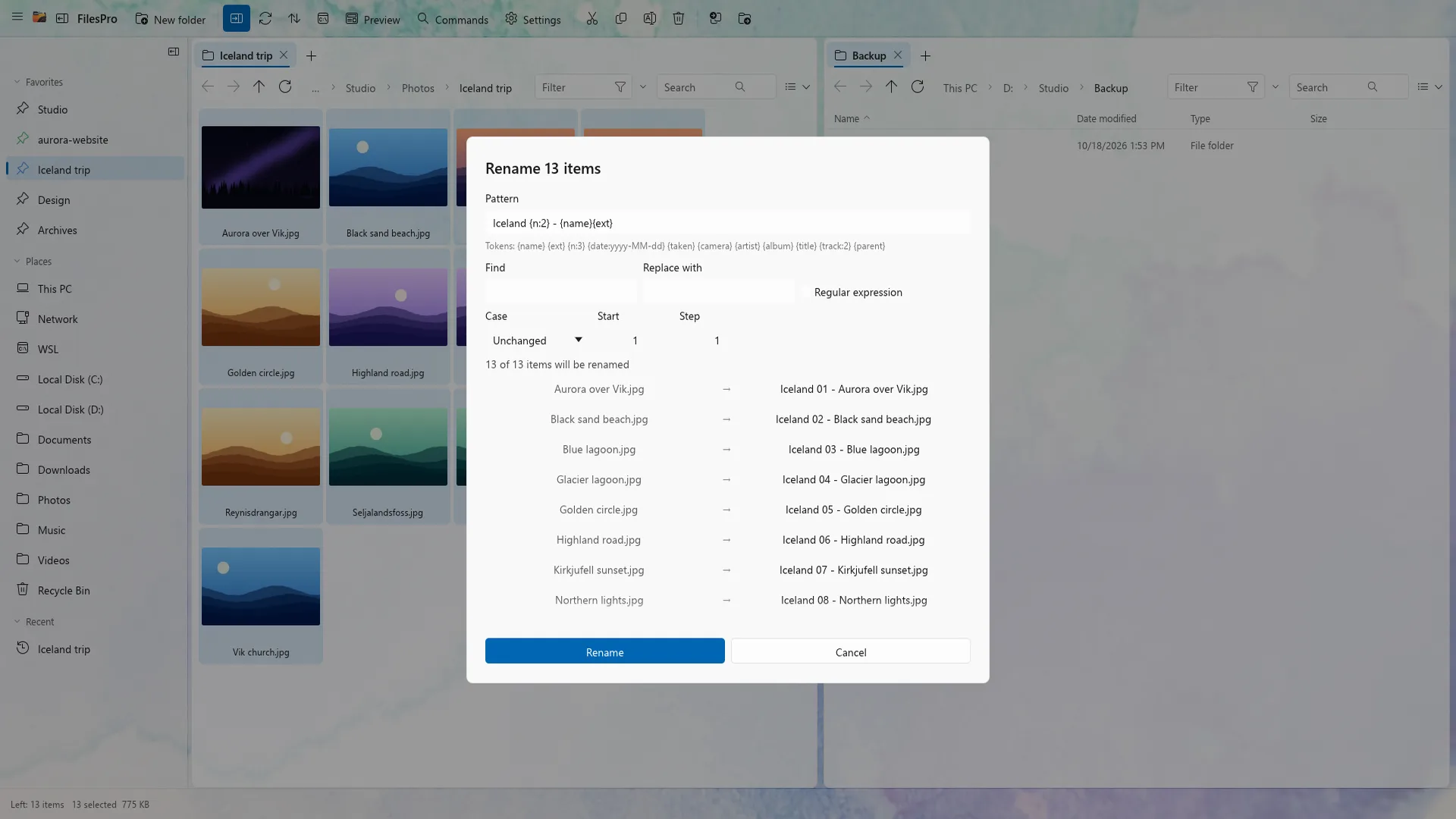
Where Windows File Explorer bulk rename stops
Selecting a group of files in Windows File Explorer and pressing F2 only gives you one pattern: Name (1), Name (2), Name (3). You cannot strip ugly camera prefixes, insert the date a photo was actually taken, clean up spaces, or preview collisions before committing.
That leaves most people either manually fixing filenames one by one or copying fragile PowerShell one-liners from forums—where a single typo can scramble hundreds of files with no easy way back.
Three clean bulk-rename workflows with live preview
1. Organise camera photos by EXIF capture date
File modification dates change whenever you copy photos between drives or cloud folders. Reading the embedded EXIF metadata inside each JPEG or HEIC keeps the real shoot timestamp intact, turning IMG_4821.HEIC into clean chronological names like 2026-10-14_Tokyo_001.heic.
2. Standardise music libraries with ID3 tags
Audio downloads often mix track numbers, hyphens, and stray website prefixes. Token-based renaming reads artist, album, and track number directly from ID3 tags so every folder follows a consistent Track - Title format.
3. Clean messy exports using regular expressions
When dealing with client deliverables, invoice PDFs, or build artefacts, regular expressions let you swap date formats, strip bracketed IDs, or normalise casing in one pass—while watching every resulting filename update live before you apply it.
A safe 4-step checklist before renaming hundreds of files
- Filter first: narrow the folder using live filters like ext:jpg or ext:pdf so stray config files are never touched.
- Inspect the live preview column: check the first, middle, and last rows for unexpected numbering or extension changes.
- Check for name collisions: ensure your pattern includes a counter token when multiple photos share the same second.
- Rely on persistent undo: in FilesPro, every batch rename is recorded in the operation journal, so Ctrl+Z reverses the entire batch—even if you restart the app.
Frequently asked questions
Can I undo a batch rename if I make a mistake?
In FilesPro, yes. The entire batch rename is recorded as a single undoable operation in a persistent journal, so pressing Ctrl+Z restores every original filename even after restarting Windows.
Does batch renaming modify the photo quality or EXIF data inside files?
No. Batch rename only changes filenames on disk; image pixels, EXIF metadata, and audio tags remain completely untouched.
Can I batch rename HEIC photos from an iPhone on Windows?
Yes. FilesPro previews HEIC images natively and reads their metadata for token-based batch renaming.

Try FilesPro on Windows
A fast, keyboard-first file manager for Windows, built in Rust.