
Keyboard-First File Management on Windows for Developers
Cut window-switching between File Explorer, PowerShell, WSL, and VS Code with Vim presets, a command palette, docked terminals, and instant previews.
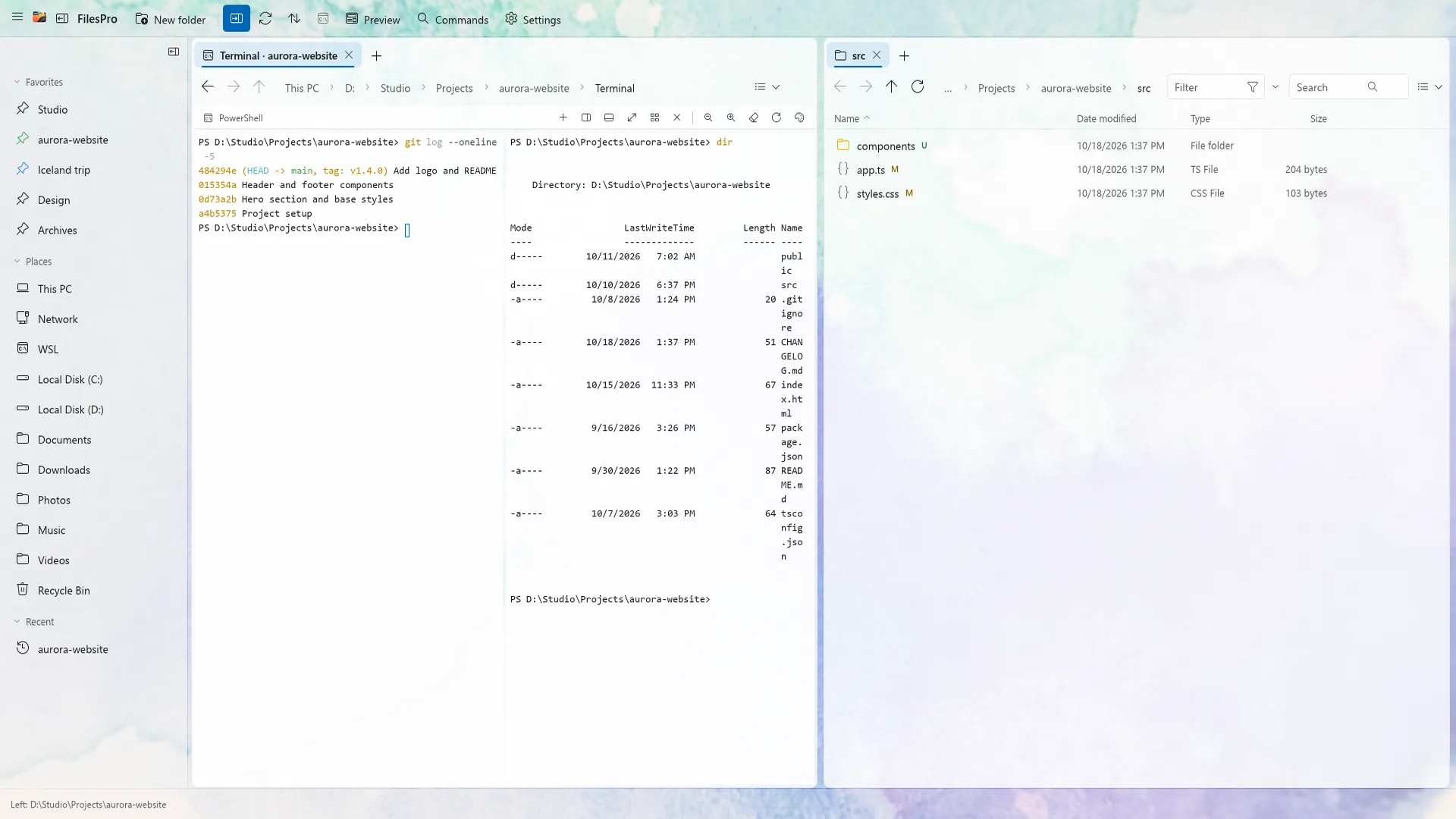
Why developers still fight File Explorer every day
Developers live on the keyboard inside VS Code, Zed, and Windows Terminal—then hit a wall the moment they need to inspect build artefacts, grab logs off an SFTP server, browse a WSL distro, or diff two release folders. Reaching for the mouse to click through four nested Explorer windows breaks flow every single time.
Command palette and keybindings that match your editor
Every action in FilesPro is a named command bound to a customisable shortcut. Hit Ctrl+Shift+P to open the command palette—the exact same muscle memory you already use in VS Code—and run any of 142 commands without hunting through ribbons or right-click menus.
- Vim preset: navigate folders, select files, and jump between panes without leaving the home row.
- Total Commander preset: classic F5 copy, F6 move, and dual-pane power-user shortcuts.
- File Explorer preset: familiar Windows defaults when you want zero learning curve.
Terminals that follow your folder, plus WSL and SFTP built in
Instead of right-clicking "Open in Terminal" and spawning ten orphaned PowerShell windows, FilesPro docks integrated terminal tiles right beside your files. Split terminals side by side and let them follow your active directory automatically.
Your sidebar puts WSL distributions, SFTP servers, and network shares one click—or shortcut—away from local folders. Need to jump into your editor? Launch VS Code, Zed, Windows Terminal, or your own custom tools straight from the active selection.
Inspect code, JSON, Markdown, PDFs, and hex without leaving the pane
Press Space for Quick Look or open files directly in FilesPro’s built-in Viewer tab: syntax-highlighted code, Markdown, CSV tables, SVG, searchable PDFs, Word documents, audio, video, and raw hex view for binary files—no waiting on a heavy IDE just to verify one config file.
Frequently asked questions
Can I use FilesPro completely without a mouse?
Yes. Every action is exposed as a rebindable command via Ctrl+Shift+P, with built-in File Explorer, Total Commander, and Vim keyboard presets.
Does FilesPro support WSL2 and remote SFTP servers?
Yes. WSL distributions, SFTP servers, and SMB network shares sit directly in the sidebar so you can browse and transfer files alongside local drives.
Can I configure FilesPro to open folders in VS Code or Zed?
Yes. FilesPro has built-in launchers for Windows Terminal, VS Code, and Zed, plus support for registering your own custom external tools.

Try FilesPro on Windows
A fast, keyboard-first file manager for Windows, built in Rust.